Xray Outbounds#
An outbound template tells bgscan how to route traffic through your proxy server during an Xray scan. Each template is a JSON file stored in assets/xray/outbounds/ that describes the protocol, transport, and security settings for one proxy configuration.
Before running an Xray scan you must have at least one outbound template configured.
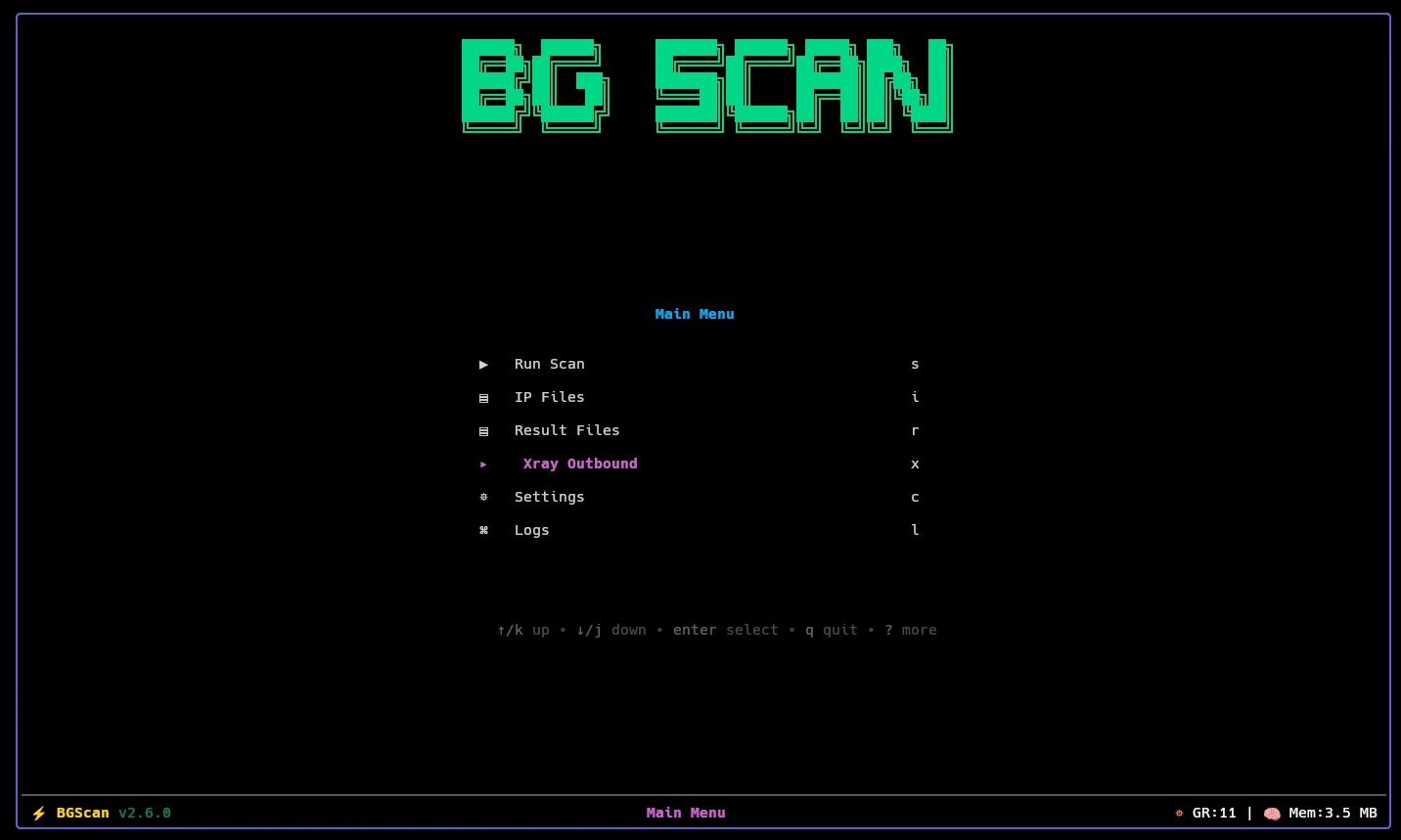
Navigate to Main Menu → Xray → Outbounds to open the outbound manager.
The Outbound Table#
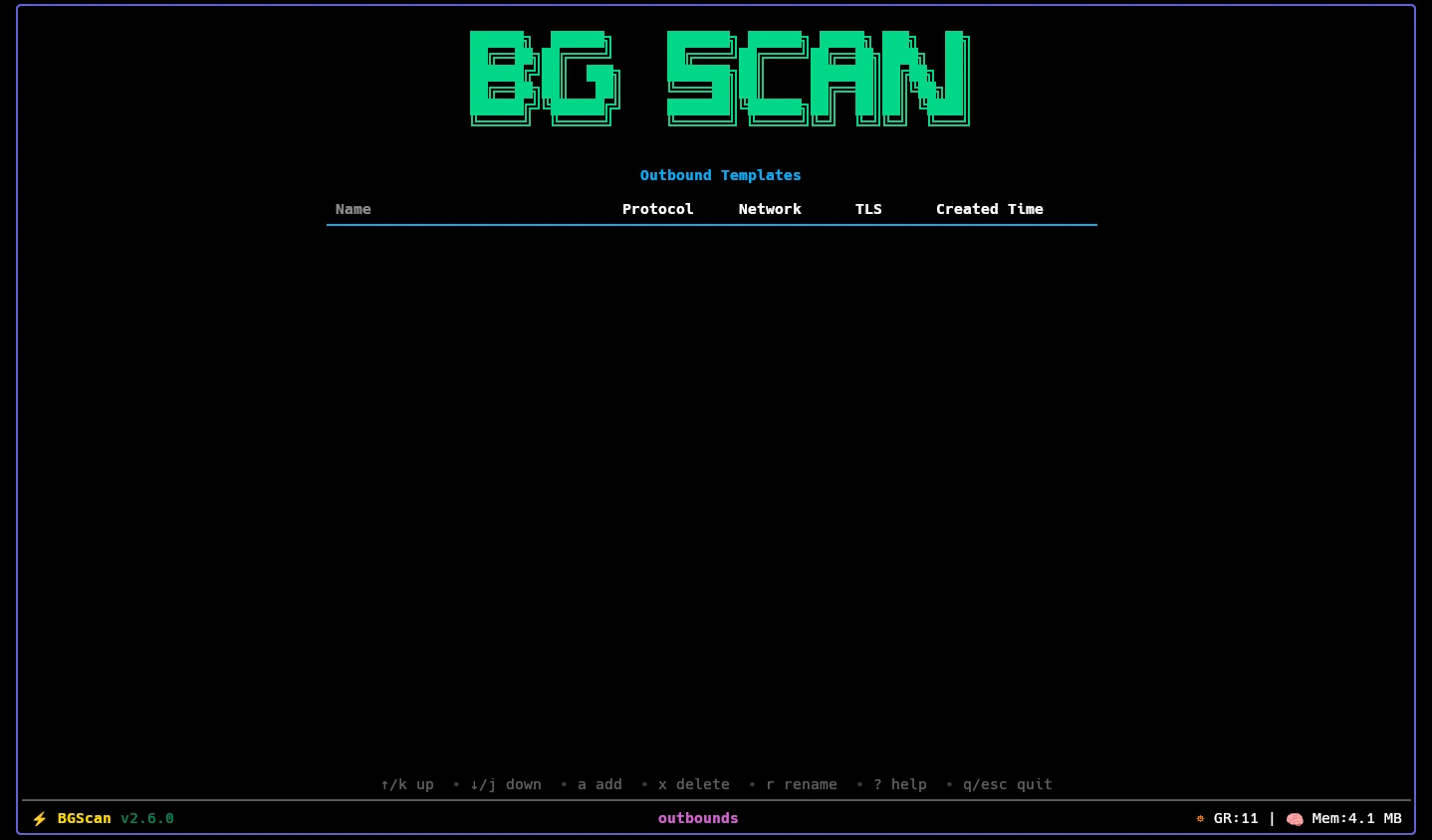
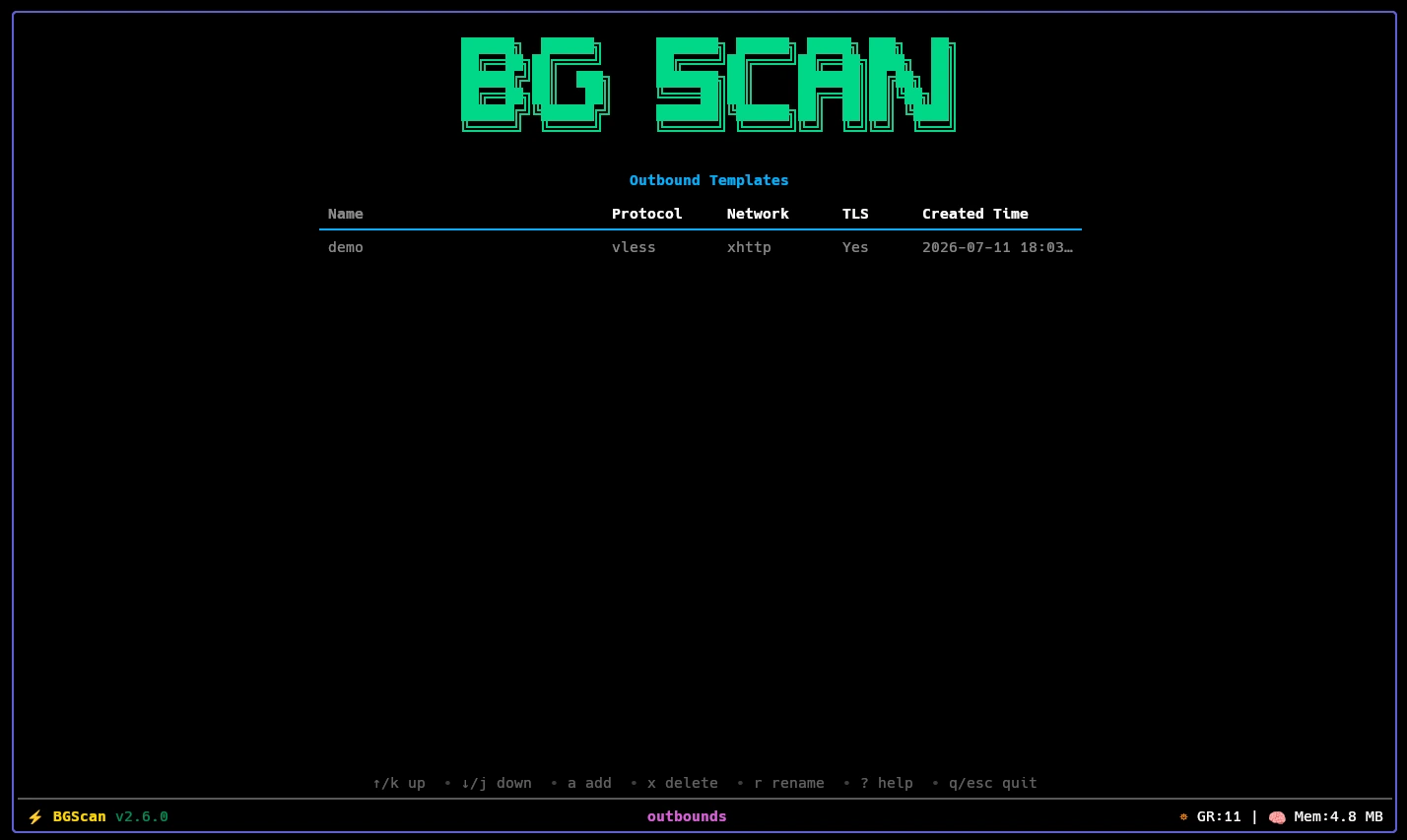
The table lists all configured outbound templates, sorted newest-first, and shows:
| Column | Description |
|---|---|
| Name | Template name (without .json) |
| Protocol | Proxy protocol (vless, vmess, trojan, etc.) |
| Network | Transport layer (ws, grpc, xhttp, tcp, etc.) |
| TLS | Whether TLS is enabled (Yes / No) |
| Created Time | File creation or last modification timestamp |
Three keyboard actions are available:
| Key | Action |
|---|---|
a | Add a new outbound template |
r | Rename the selected template |
x | Delete the selected template permanently |
Adding an Outbound (a)#
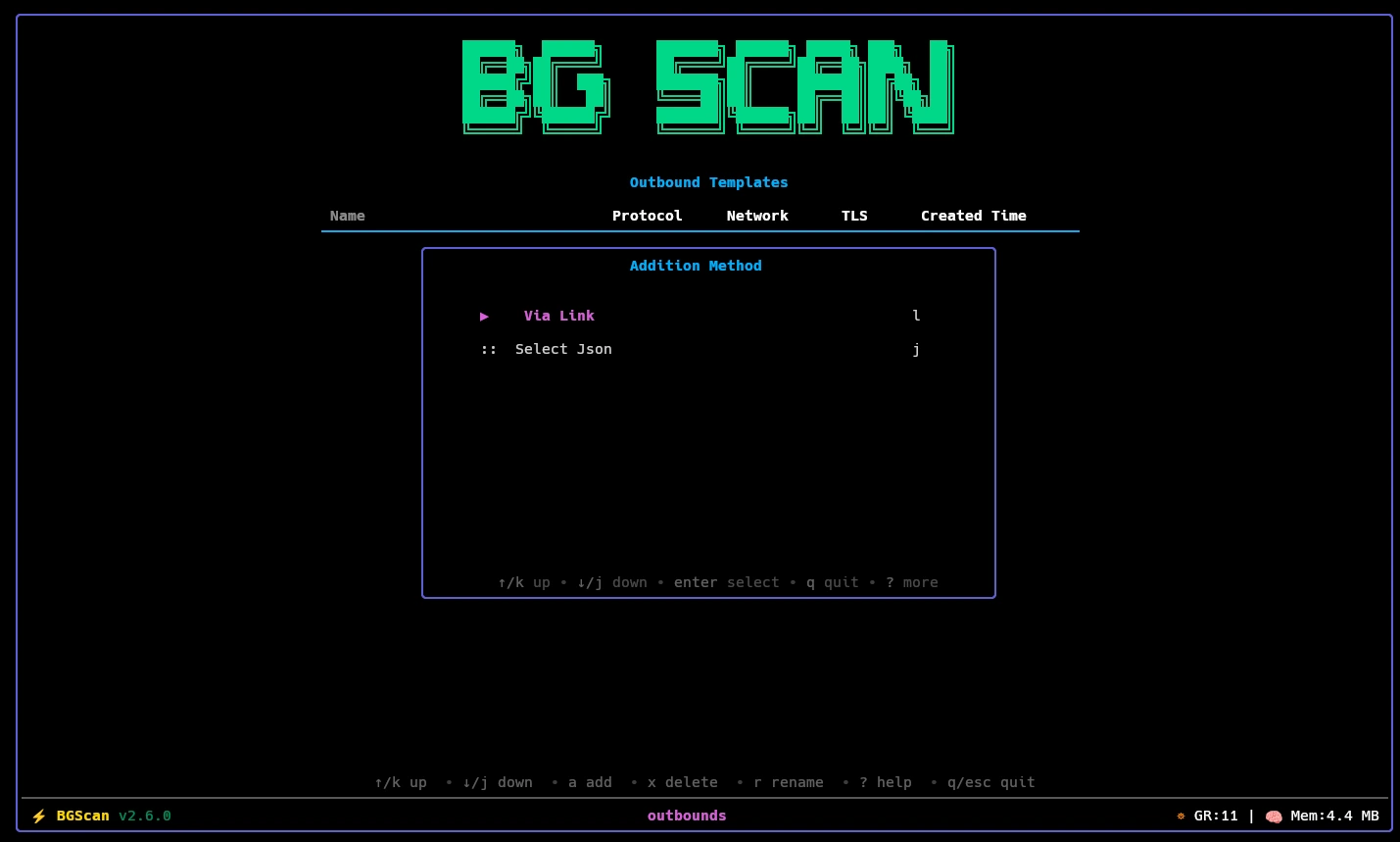
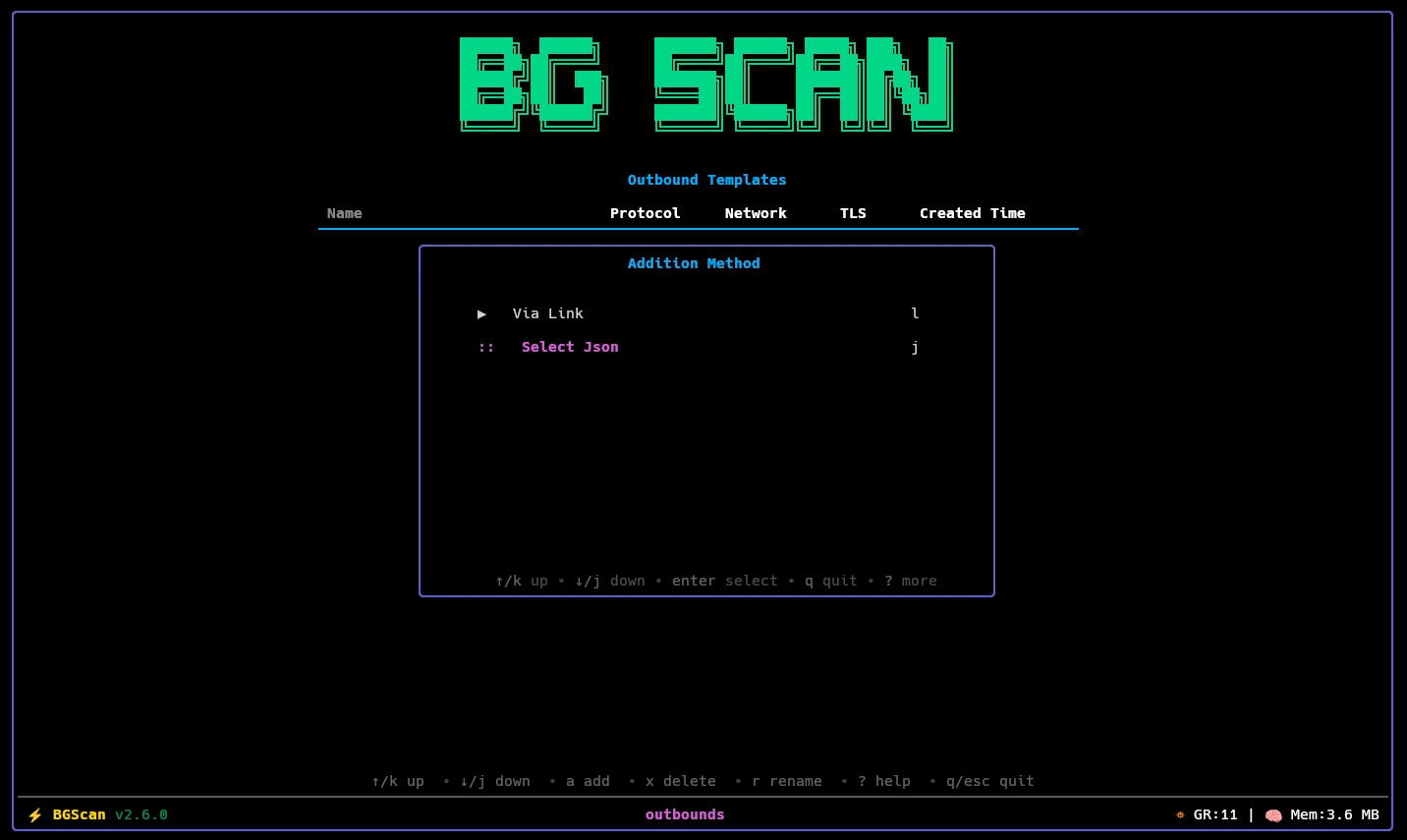
Press a to open the Add Outbound dialog. bgscan offers two ways to add a template:
Option 1 — From a Share Link#
Choose From Link and paste your proxy share link when prompted. bgscan parses the link automatically and saves it as a template.
Supported link schemes:
| Scheme | Protocol |
|---|---|
vmess:// | VMess |
vless:// | VLESS |
trojan:// | Trojan |
ss:// | Shadowsocks |
hysteria2:// or hy2:// | Hysteria2 |
wireguard:// or wg:// | WireGuard |
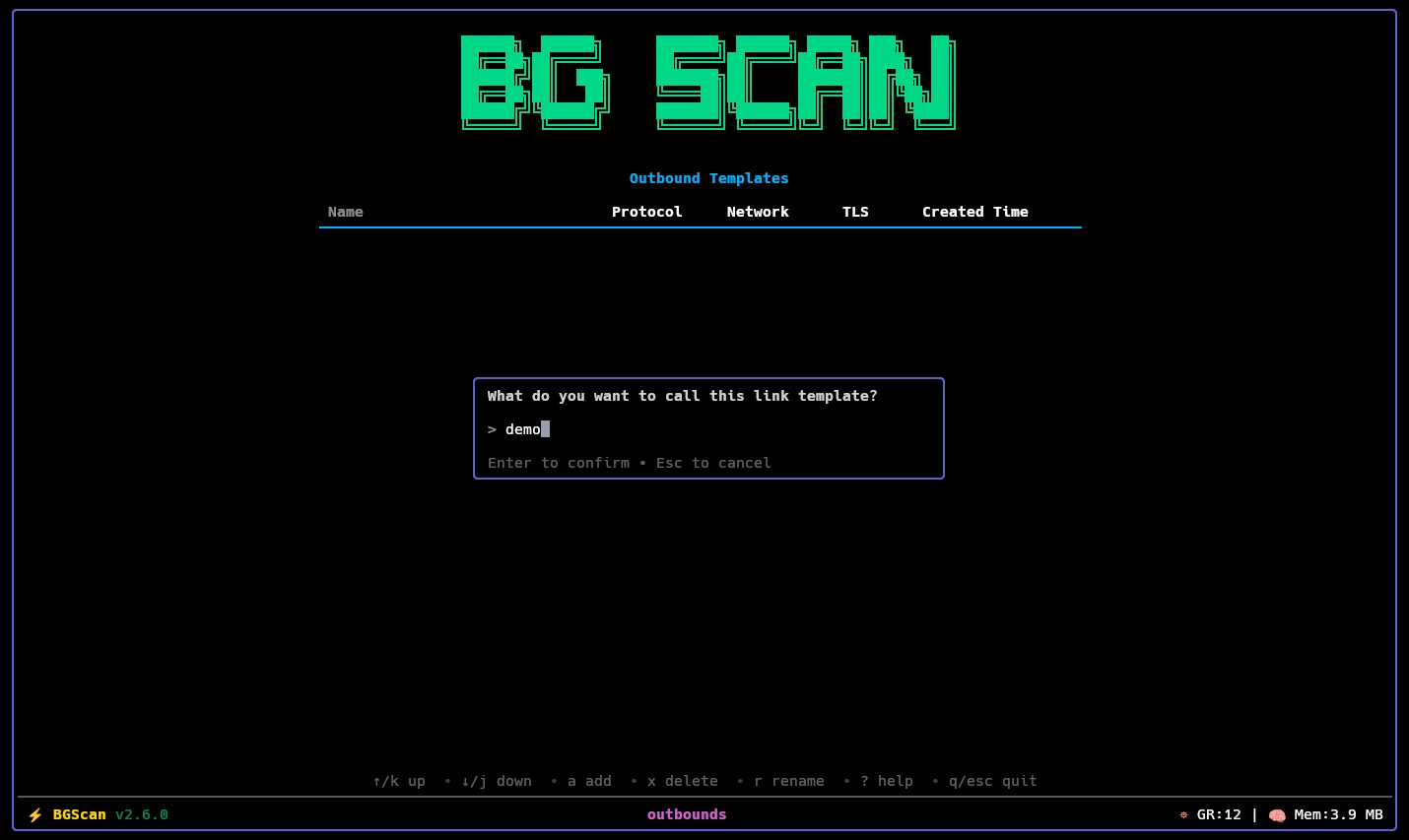
After pasting the link, enter a name for the template when prompted. The name must be unique — you cannot use the same name as an existing template.
a → From Link → Paste link → Enter name → Done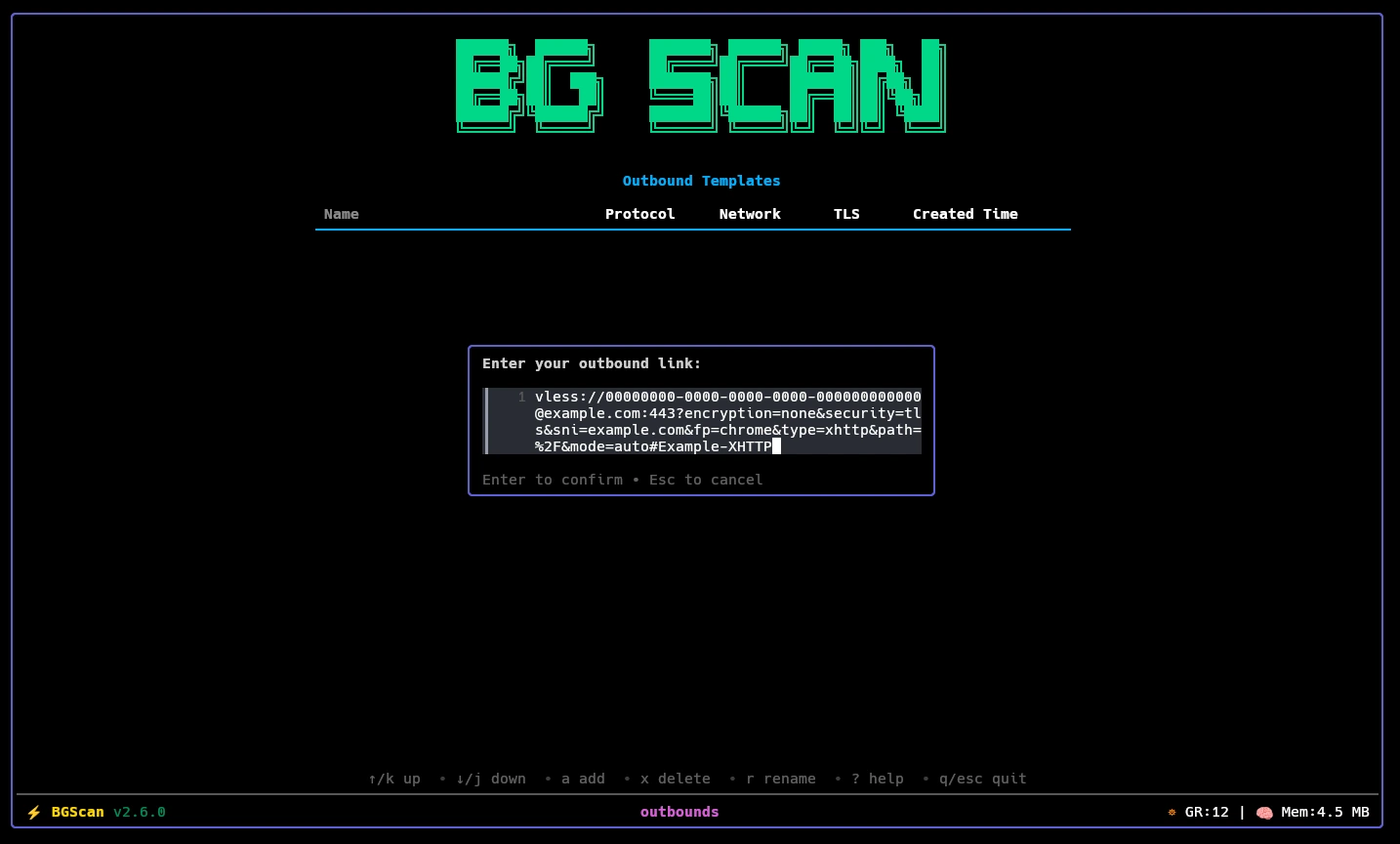
Option 2 — From a JSON File#
Choose From JSON File and select a .json file from your filesystem. bgscan validates the file and saves it as a template.
The JSON file must be a single outbound object — not a full Xray config. It must contain the "$ADDRESS" placeholder in the address field, which bgscan replaces with each target IP at scan time.
Requirements:
- Must be valid JSON.
- Must contain
"address": "$ADDRESS"somewhere in the outbound object — import will be rejected without it. - Must pass Xray’s own config validation (
xray --test). - Must not be a full Xray config (no
inbounds,routing, oroutboundsarray wrapping it).
Minimal valid example:
{
  "protocol": "vless",
  "settings": {
    "vnext": [
      {
        "address": "$ADDRESS",
        "port": 443,
        "users": [
          { "id": "your-uuid-here", "encryption": "none" }
        ]
      }
    ]
  },
  "streamSettings": {
    "network": "ws",
    "security": "tls",
    "tlsSettings": { "serverName": "example.com" },
    "wsSettings": { "path": "/ws", "headers": { "Host": "example.com" } }
  }
}
After selecting the file, enter a name for the template when prompted. The name must be unique.
a → From JSON File → Select file → Enter name → Done
Storage Location#
All outbound templates are stored as .json files in:
<bgscan-root>/
└── assets/
    └── xray/
        └── outbounds/
            ├── my-vless-ws.json
            ├── cloudflare-trojan.json
            └── ...
The template’s display name in the TUI is the filename without the .json extension.
bgscan also ships example templates with a .json.example extension in the same directory. These are reference files only and are not loaded as active outbounds. To use one, copy it, remove the .example suffix, fill in your values, and place it in the same directory — or import it via From JSON File in the TUI.
The $ADDRESS Placeholder#
Every outbound template must contain "address": "$ADDRESS" in its settings. During an Xray scan, bgscan generates a temporary per-IP config by replacing $ADDRESS with each target IP before starting an in-process Xray instance. The generated configs are written to assets/xray/configs/ and cleaned up after each probe.
Do not change or remove this placeholder — templates missing it will be rejected on import.
Renaming and Deleting#
Rename (r): Select a template and press r. Enter the new name at the prompt. The new name must be unique.
Delete (x): Select a template and press x. The file is removed from assets/xray/outbounds/ permanently. There is no undo.