Result Files#
After a scan completes, bgscan writes the discovered IPs and their measurements to result files. These files are organized by created time and can be browsed, viewed, renamed, or deleted from the TUI.
Viewing Result Files#
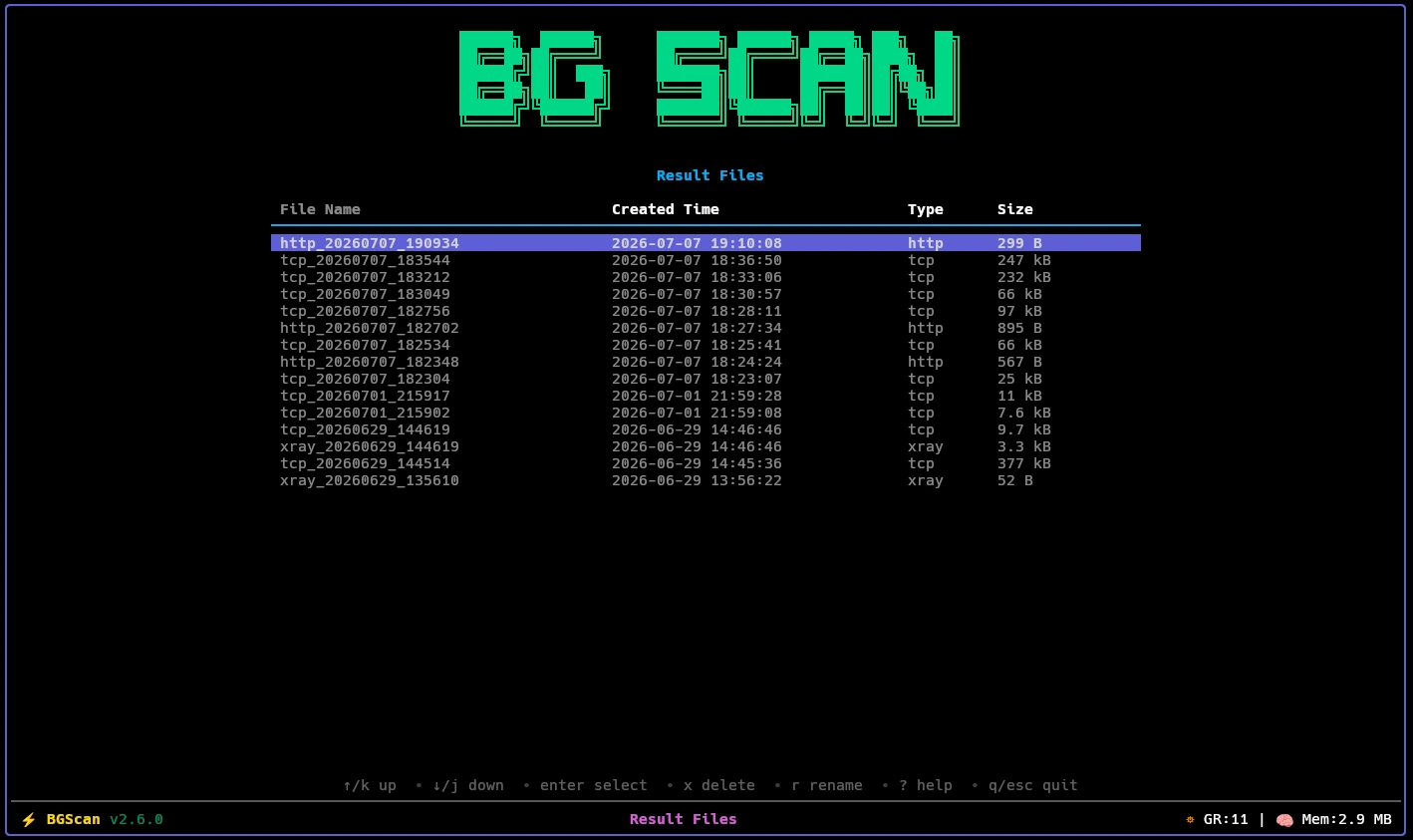
Navigate to Main Menu → Result Files to open the result file browser.
The table lists every result file across all scan types, sorted newest-first, and shows:
| Column | Description |
|---|---|
| File Name | The result file name (without .csv) |
| Created Time | File creation or last modification timestamp |
| Type | The scan engine that produced the file (icmp, tcp, http, etc.) |
| Size | File size on disk |
Two keyboard actions are available:
| Key | Action |
|---|---|
r | Rename the selected file |
x | Delete the selected file permanently |
Opening a result file#
Press Enter on any file to open the IP viewer, which displays the targets found in that file along with the columns defined by that scan type’s result schema. ICMP, TCP, HTTP, DNS, DNSTT, VayDNS, and Slipstream show latency plus their type-specific columns; Xray results additionally show download and upload measurements.
Storage Location#
Result files are stored under the result/ directory next to the bgscan binary, in a subdirectory per scan type:
<bgscan-root>/
└── result/
    ├── icmp/
    ├── tcp/
    ├── http/
    ├── xray/
    ├── dns_resolver/
    ├── dnstt/
    ├── vaydns/
    └── slipstream/
Each directory holds .csv files produced by its corresponding scan engine. Files are created automatically when a scan runs — you do not need to create these directories manually.
File Naming#
Result files are named using the scan engine’s configured prefix followed by a timestamp:
<prefix><YYYYMMDD_HHMMSS>.csvEach scan type has a default prefix set in its configuration:
| Scan Type | Default Prefix | Example Filename |
|---|---|---|
| ICMP | icmp_ | icmp_20240711_143022.csv |
| TCP | tcp_ | tcp_20240711_143022.csv |
| HTTP | http_ | http_20240711_143022.csv |
| Xray | xray_ | xray_20240711_143022.csv |
| DNS Resolver | dns_ | dns_20240711_143022.csv |
| DNSTT | dns_tun_ | dns_tun_20240711_143022.csv |
| VayDNS | dns_tun_ | dns_tun_20240711_143022.csv |
| Slipstream | dns_tun_ | dns_tun_20240711_143022.csv |
The prefix for each scan type is set in its own settings file. See Settings Overview.
File Format#
Result files are plain CSV with no header row. Each row is one responsive target, serialized according to that scan type’s result schema. Every scan type records at least the target IP and latency; additional columns depend on what the probe measures.
| Scan Type | CSV Columns |
|---|---|
| ICMP | ip, latency, tries, mode |
| TCP | ip, latency, port, tries |
| HTTP | ip, latency, status, version, tls |
| Xray | ip, latency, download, upload |
| DNS Resolver | ip, latency, record_type, tries, rcode, dpi_check |
| DNSTT | ip, latency, transport, port, auth, proxy |
| VayDNS | ip, latency, transport, port, auth, proxy |
| Slipstream | ip, latency, port, auth, proxy |
ip— the IPv4 or IPv6 address that responded.latency— round-trip or connection latency (e.g.123ms).download/upload— bandwidth measurements for Xray in bits per second (bps); 0 bps when the corresponding test is not enabled.status/version/tls— HTTP response status code, negotiated HTTP version, and whether TLS was used.tries— number of attempts before success.mode— ICMP socket mode (raworudp).rcode/dpi_check— DNS response code and whether the anti-hijacking DPI check passed.transport/port— DNS transport used and the local SOCKS5 port allocated for tunnel probes.auth/proxy— authentication method and proxy type configured for the tunnel probe.
Example (HTTP)#
1.2.3.4,45ms,200,HTTP/2.0,true
2606:4700::6810:85e5,120ms,403,HTTP/1.1,true
Example (Xray)#
1.2.3.4,45ms,0 bps,0 bps
5.6.7.8,120ms,10.00 Mbps,5.00 Mbps
For scan types that do not measure speed, the download and upload columns are absent.
Result Ordering#
IPs within a result file are sorted by a per-schema quality score — higher is better. Each scan type defines its own Score():
- ICMP, TCP, HTTP, DNS, DNSTT, VayDNS, Slipstream — inverse latency (
1000 / latency_ms), so the lowest-latency targets sort first. - Xray — weighted blend of latency (10%), download throughput (60%), and upload throughput (30%). When a speed test is disabled, its component is zero, so a connectivity-only Xray scan sorts purely by latency.
The writer merge-sorts new results against the existing file by score and replaces duplicate IPs with the newer record. Equal scores retain their relative order.